Remote access VPN for UNSW staff and students
GlobalProtect Client Software For Linux
Ubuntu 26.04 LTS Ubuntu 24.04 LTS Troubleshooting Root CA Certificate Fedora Linux 41
Ubuntu 26.04 LTS / Ubuntu 25.10
1. Please download the GlobalProtect Linux package file through the Link provide in the email.
2. Please verify that the file check sum is matching with the check sum provide in the email. e.g.:
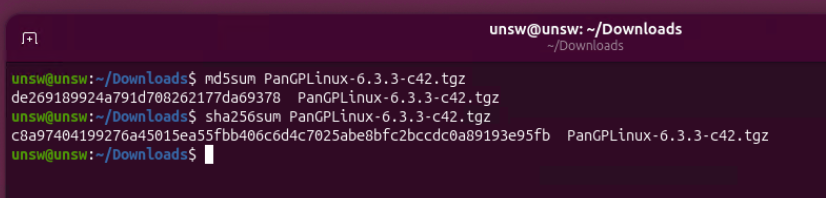
3. Extract the installation package file: PanGPLinux-6.3.3-c42.tgz into a folder. (e.g.: PanGPLinux-6.3.3-c42)
4. Install the GlobalProtect Client software via CLI:
sudo apt install ./GlobalProtect_deb-6.3.3.1-674.deb
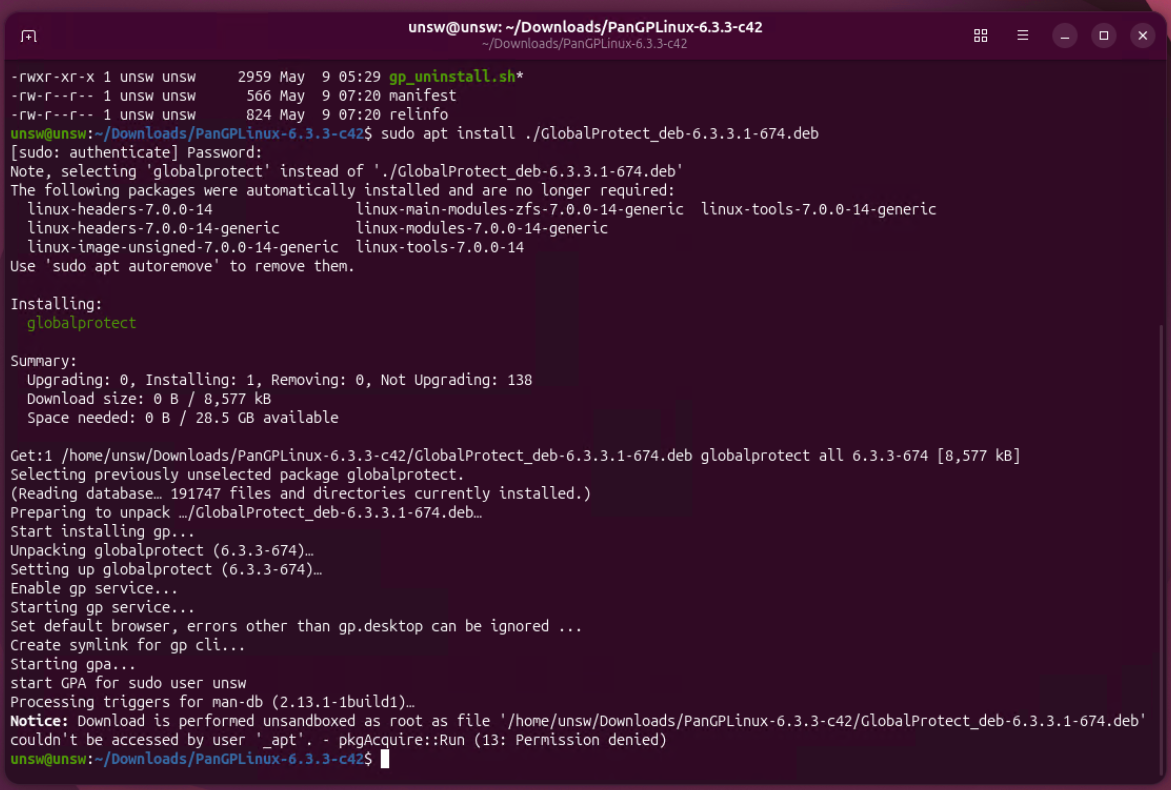
5. Run globalprotect to start the GP Service.
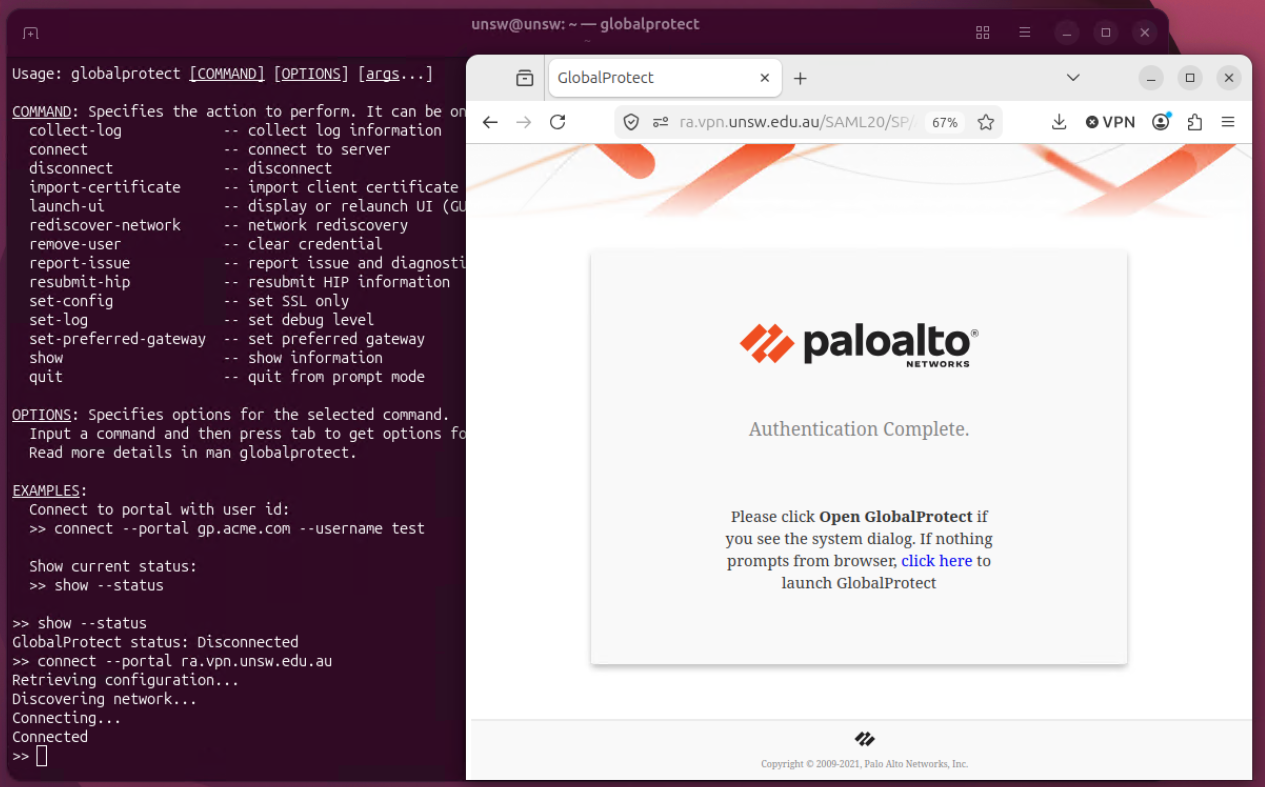
6. Run connect --portal ra.vpn.unsw.edu.au to start the connection process:
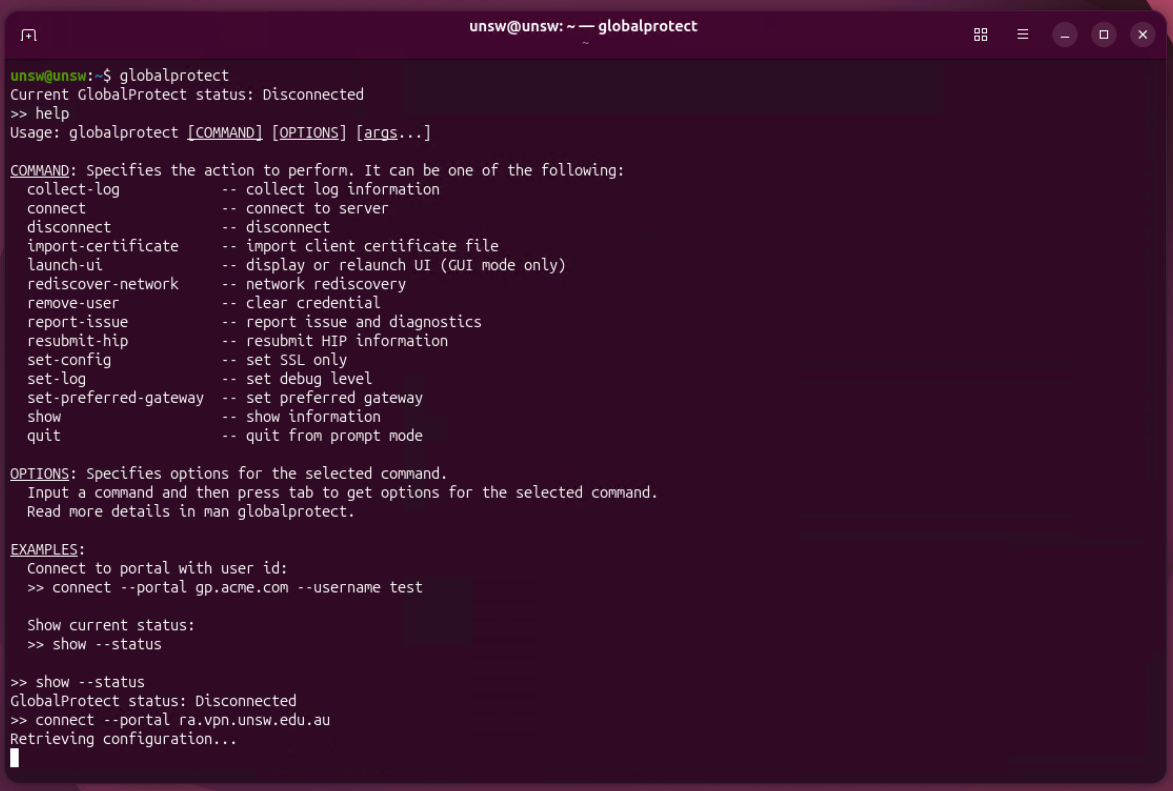
7. It should be pop up a web browser window for you to login your zID account. Please make sure you have a default web browser ready to use.
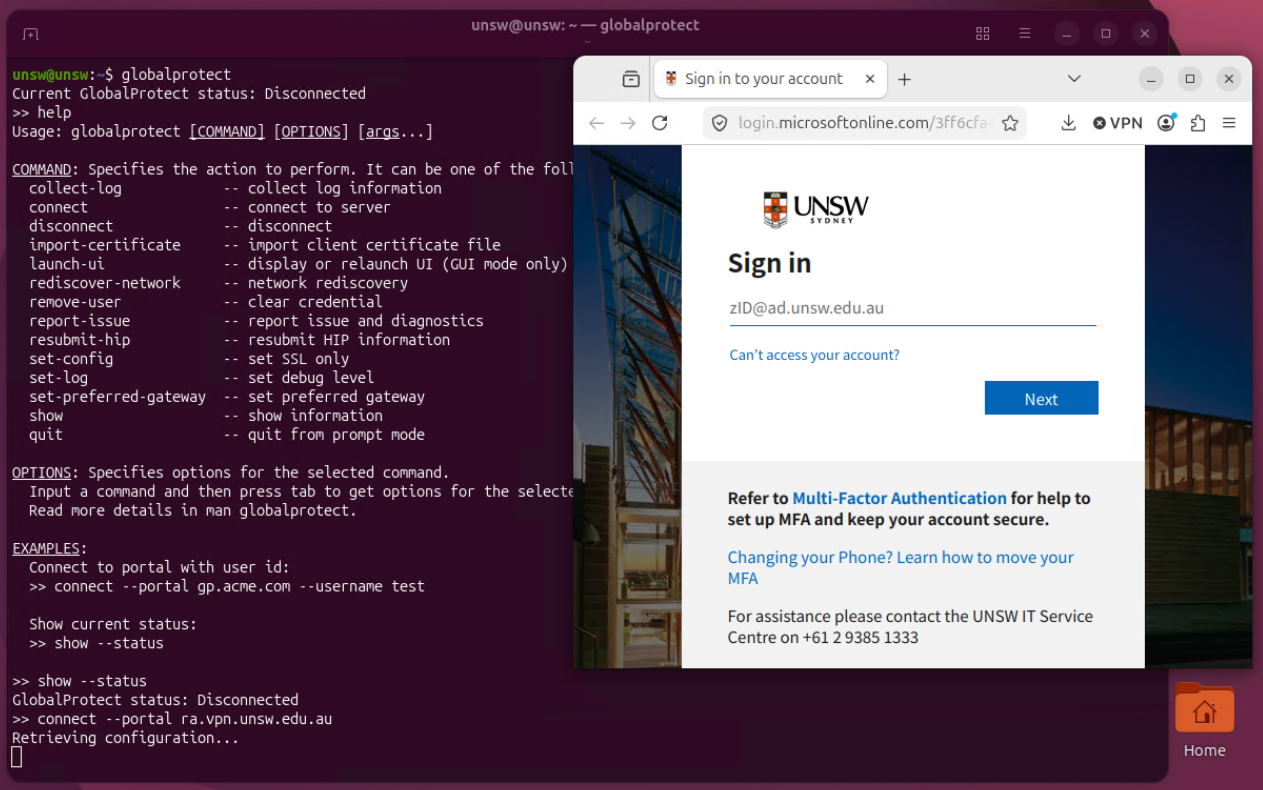
8. Enter your zID account (e.g.: z1234567@ad.unsw.edu.au) and zPass, followed by MFA process, Complete multi factor authentication (MFA) with the Authenticator app on your mobile device.
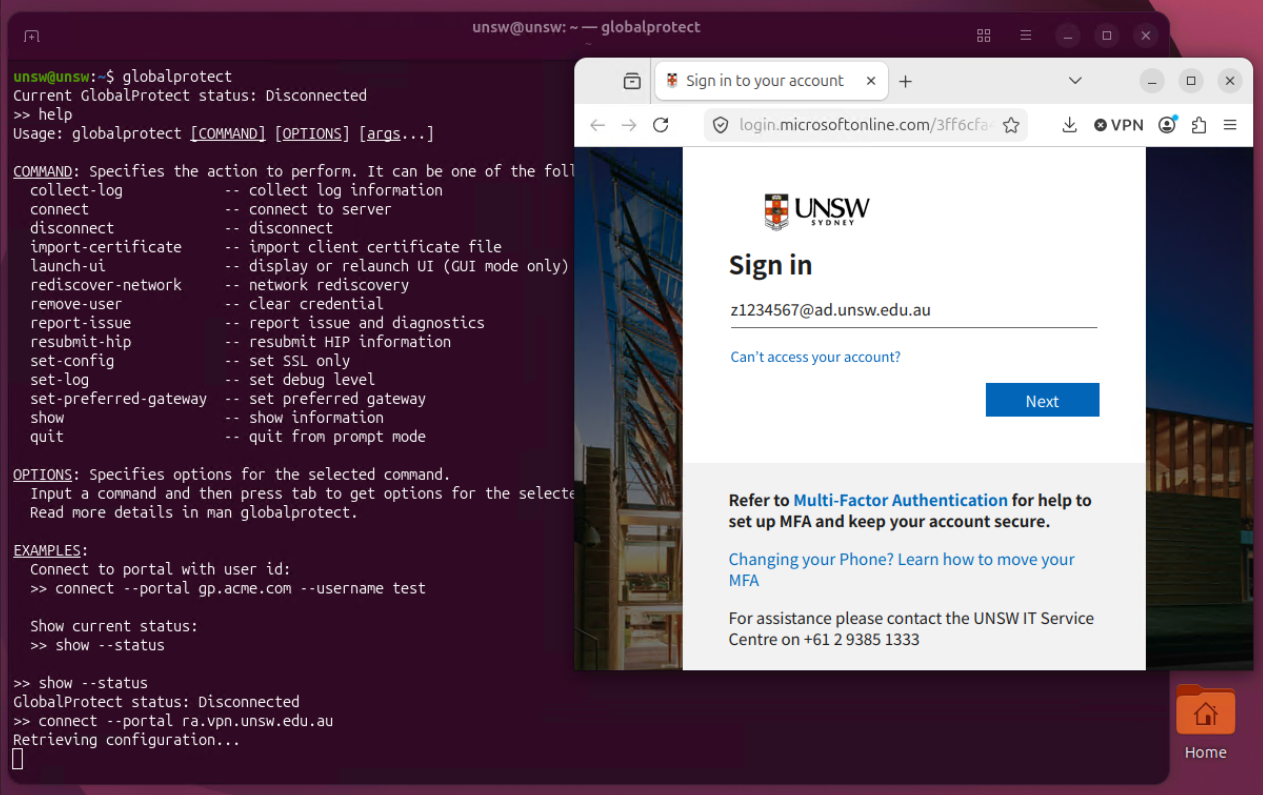
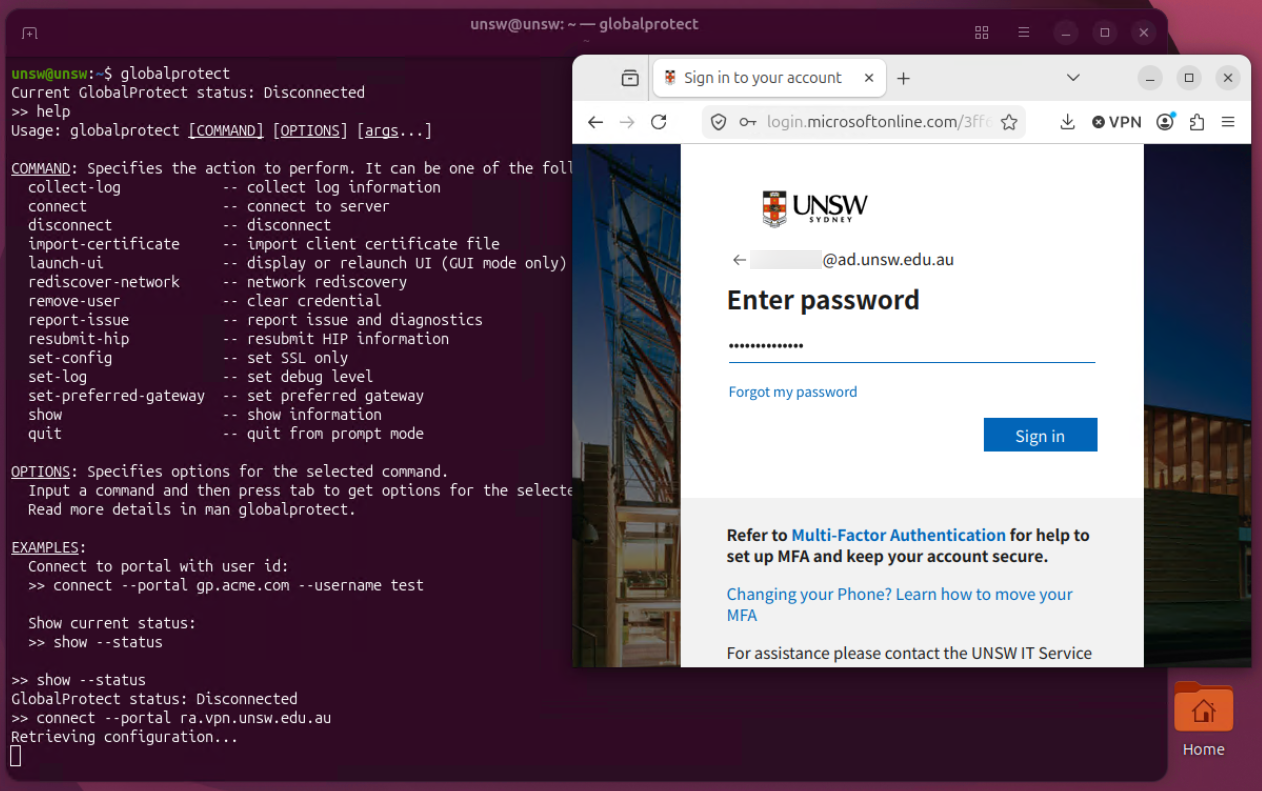
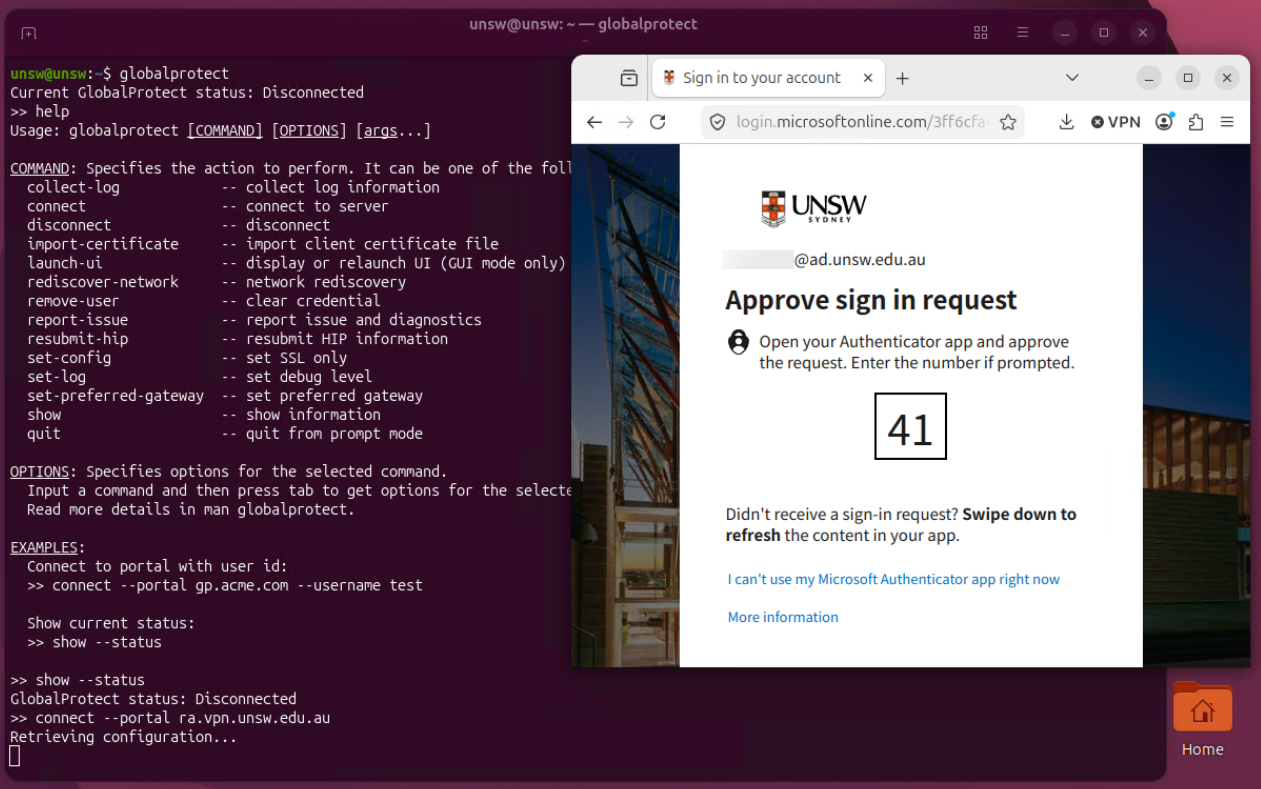
9. In “Authentication Complete” page, Please tick the check box “Always allow https://ra.vpn.unsw.edu.au to open globalprotectcallback links” and then click “ Open Link ” to continue
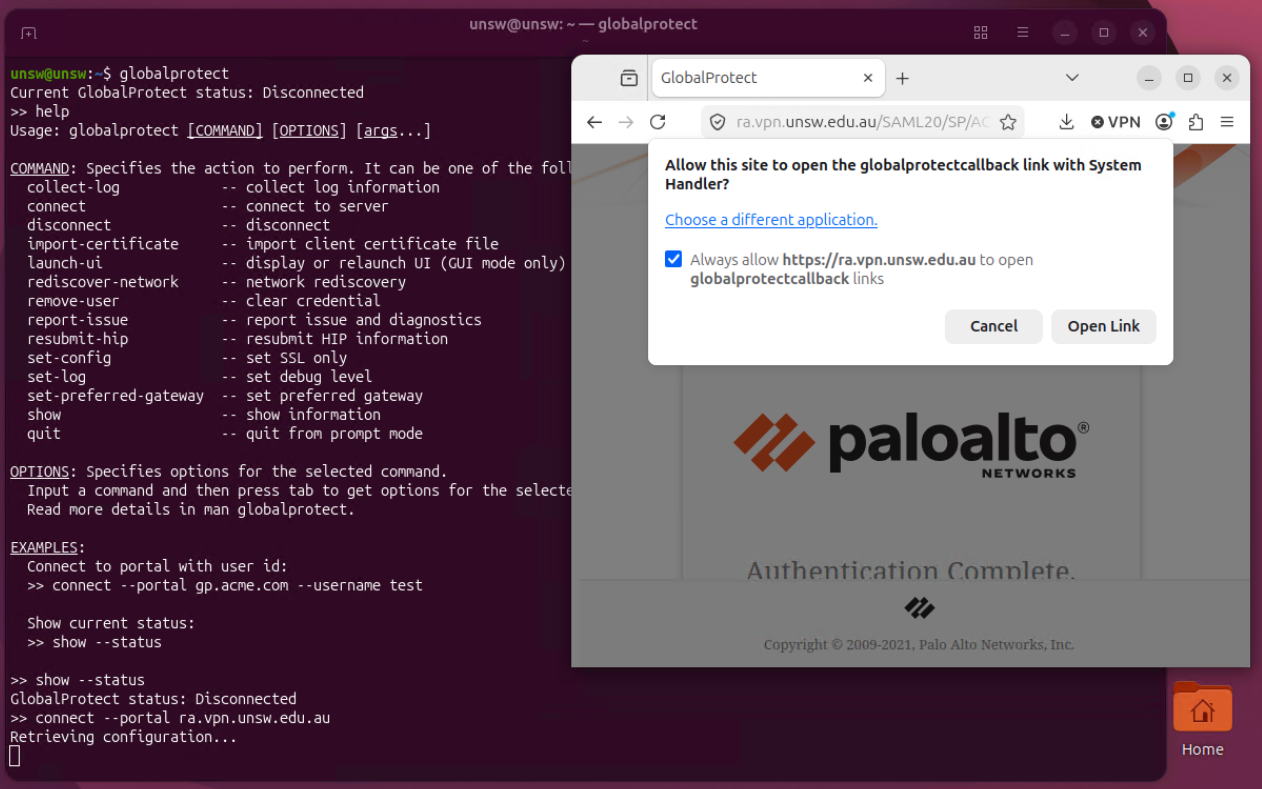
10. The GlobalProtect should be connected
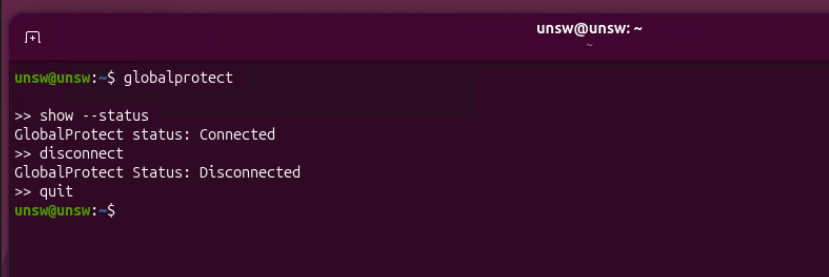
11. To disconnect the VPN, use disconnect to disconnect the VPN and follow by quit to exit the prompt mode.
Ubuntu 24.04 LTS
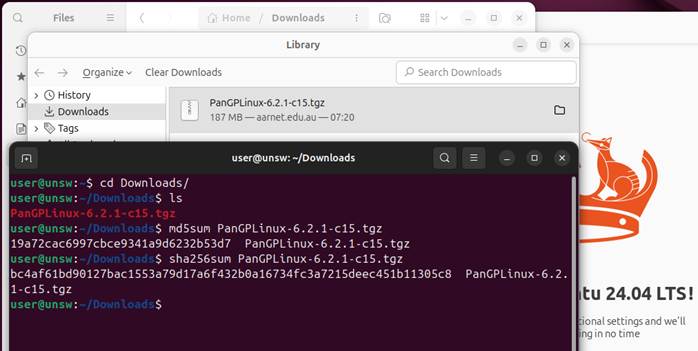
1. Please download the GlobalProtect Linux package file through the Link provide in the email.
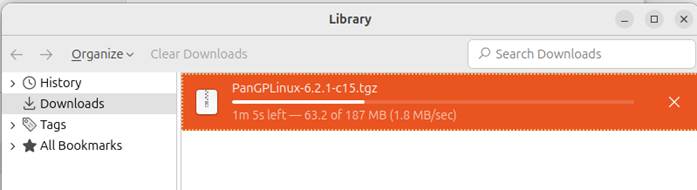
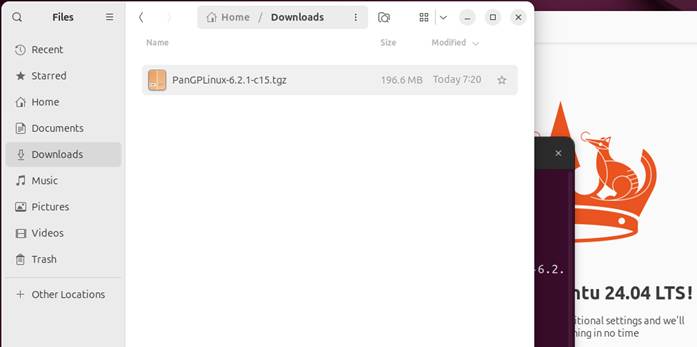
2. Please verify that the file check sum is matching with the check sum provide in the email.
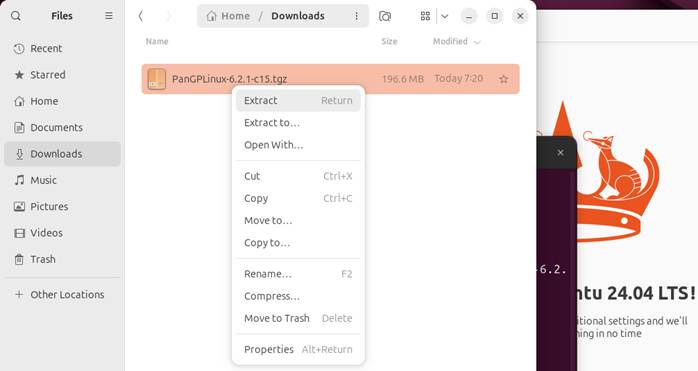
3. Unzip the Linux package file and find the correct installation file according to your Linux version and architecture ( Intel x86 or ARM ). Please choose the UI version on GUI Linux if possible as you may need a browser for the MFA process during the ra.vpn.unsw.edu.au login process.
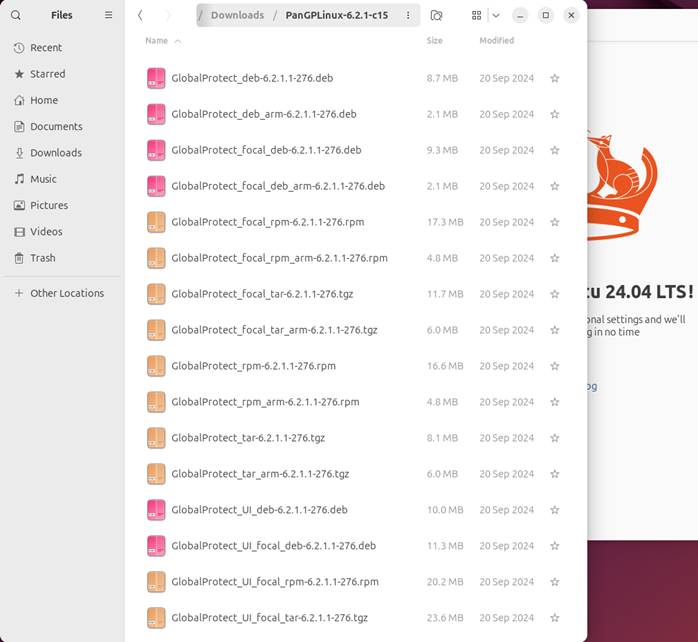
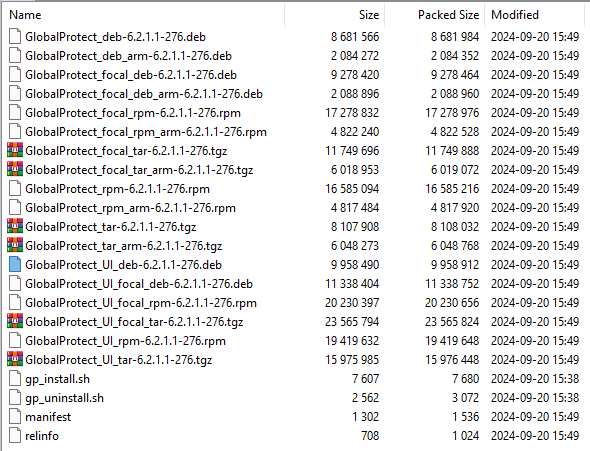
4. Install the GlobalProtect Client software via GUI or CLI:
In CLI for example with installation file: GlobalProtect_UI_deb-6.2.1.1-276.deb for Ubuntu 24.04 x86 chipset
~/Downloads$ sudo apt install ./PanGPLinux-6.2.1-c15/GlobalProtect_UI_deb-6.2.1.1-276.deb
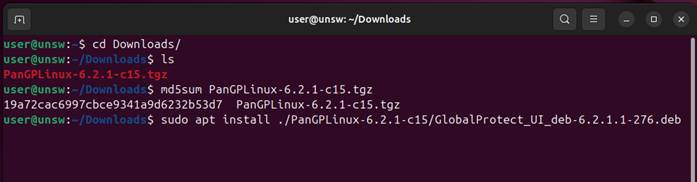
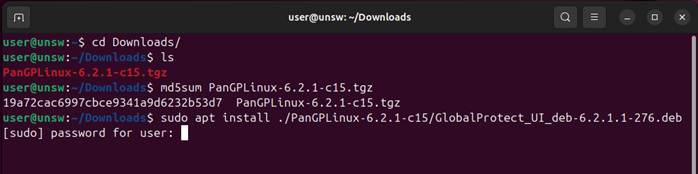
Enter sudo password then enter
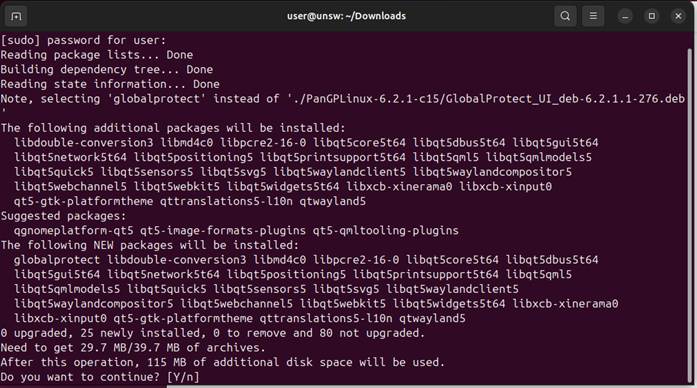
Enter Y to continue…
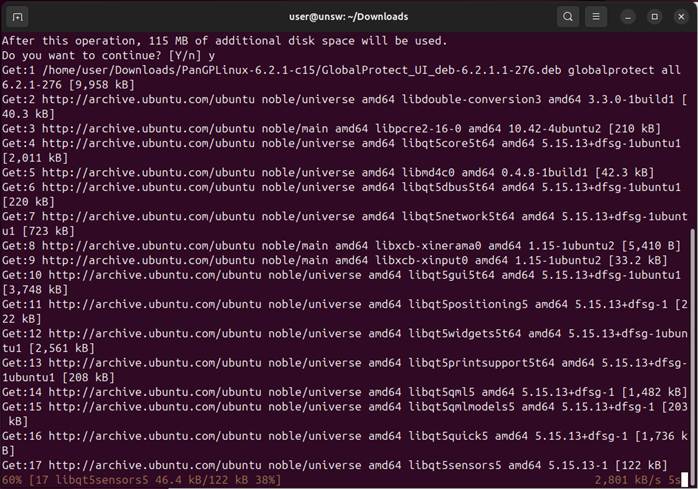
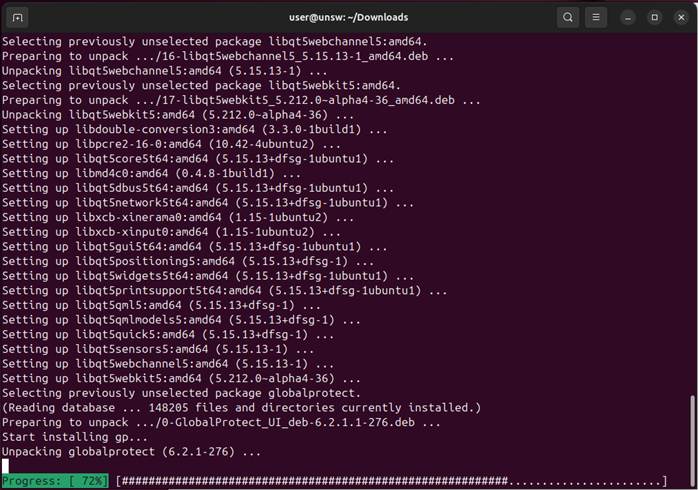
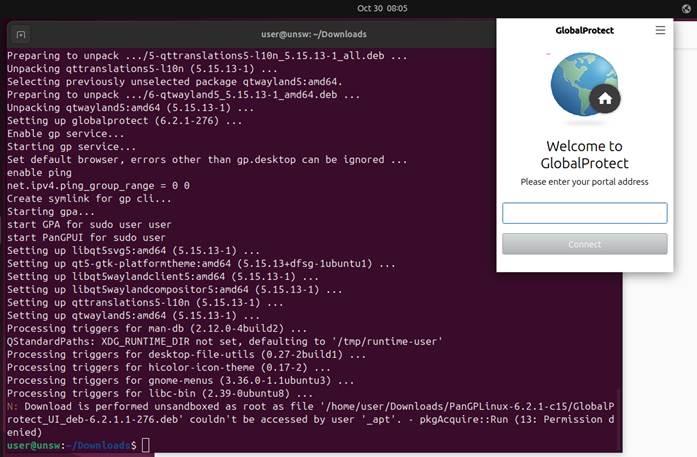
5. The GlobalProtect Client should start automatically after installation. If not, please check if there is a GlobalProtect icon showing in the top right corner:

If there is no GlobalProtect icon in the top right corner, please find it at bottom left corner “show apps”
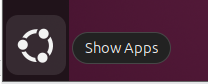
GlobalProtect icon should be the last added apps. Please double click the GlobalProtect App icon to start it.
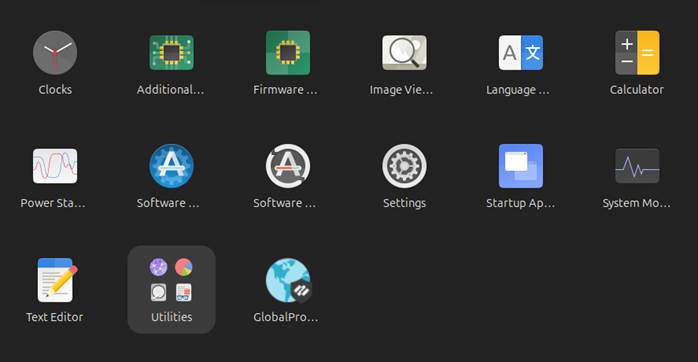
6. After starting the GlobalProtect App, please put in portal address: ra.vpn.unsw.edu.au
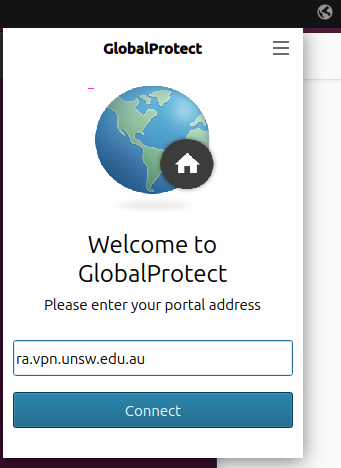
7. Then click “ Connect ”, it should be pop up a web browser window for you to login your zID account.
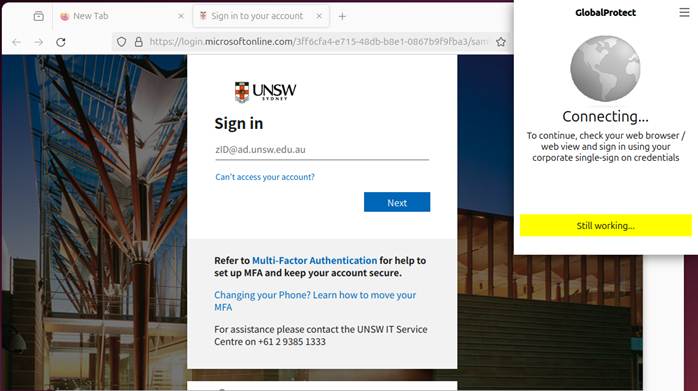
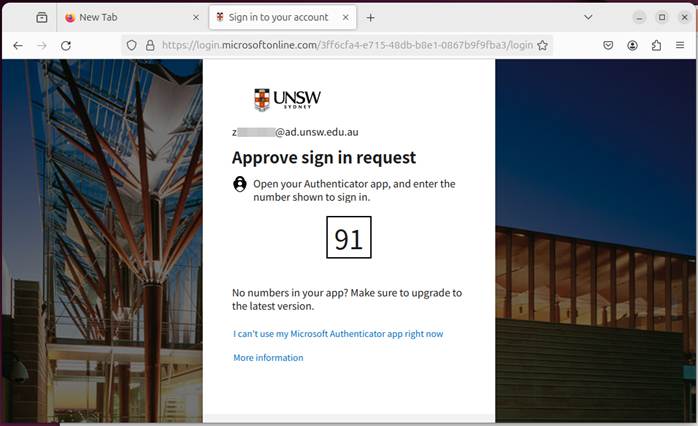
8. Enter your zID account (e.g.: z1234567@ad.unsw.edu.au) and zPass, followed by MFA process, Complete multi factor authentication (MFA) with the Authenticator app on your mobile device.
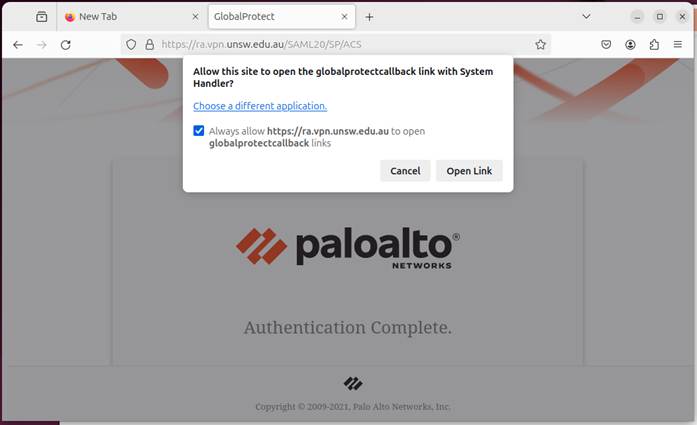
9. In “Authentication Complete” page, Please tick the check box “Always allow https://ra.vpn.unsw.edu.au to open globalprotectcallback links” and then click “ Open Link ” to continue
10. The GlobalProtect should be connected
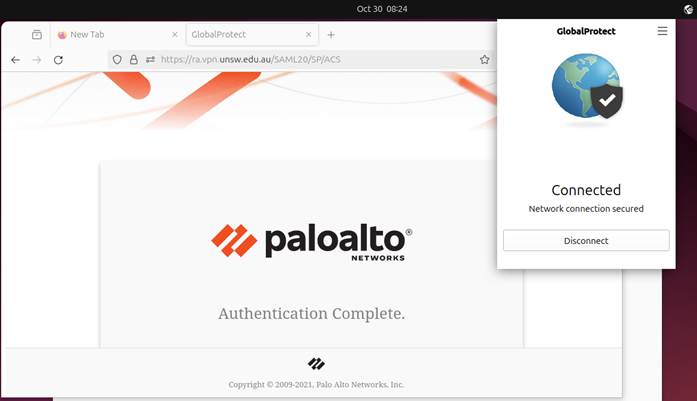
-------------- Troubleshooting --------------
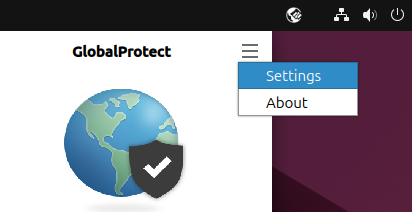
If there is error occurring, please take screenshots for the error message, and please click the menu on the GlobalProtect Apps and click “ settings ”:
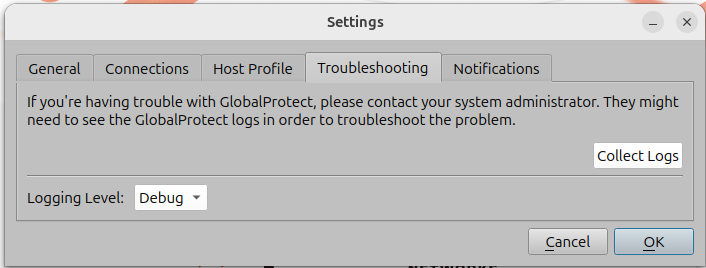
Then click “ Troubleshooting ” Tab, and click “ Collect Logs ”:
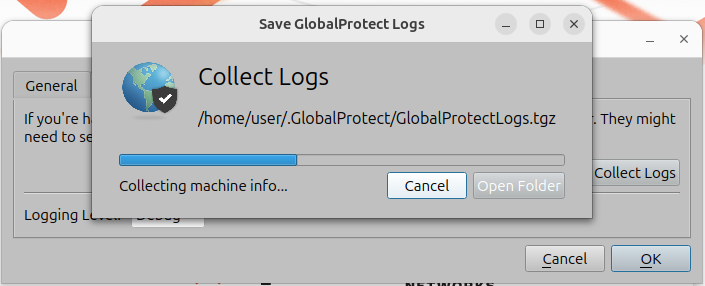
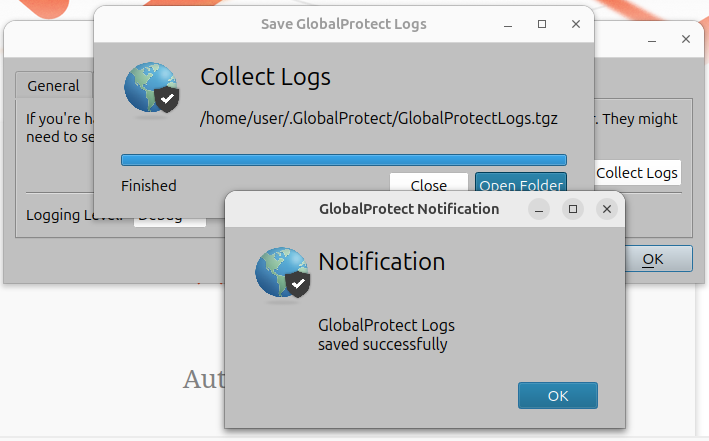
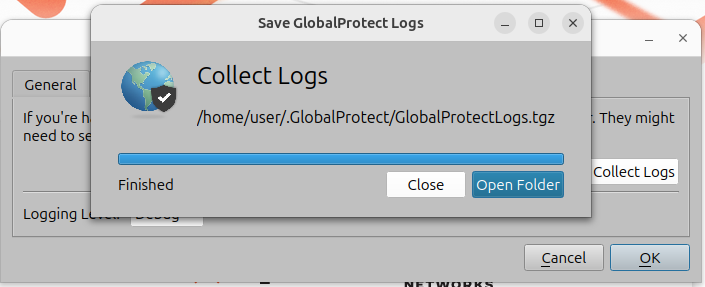
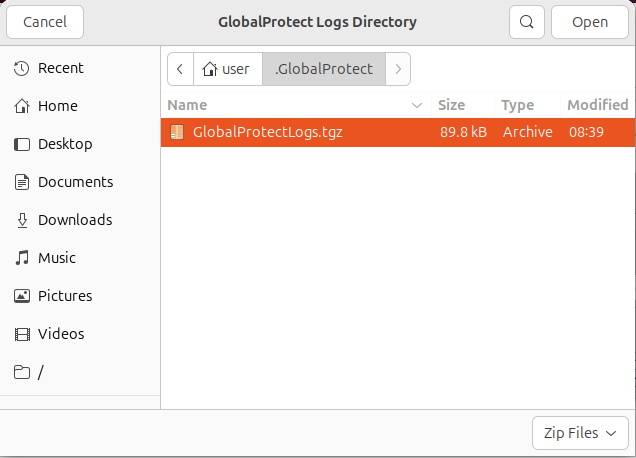
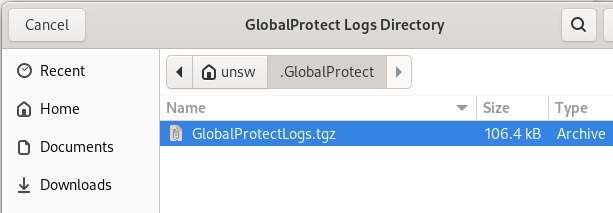
Then click “ Open Folder “
Please send us the logs file generated via email, so we can diagnostic the issue.
============== Issue with no browser pop up but a text editor instead ==============
If you see a text editor pop up after you click the “Connect” on GlobalProtect like the following screenshot:
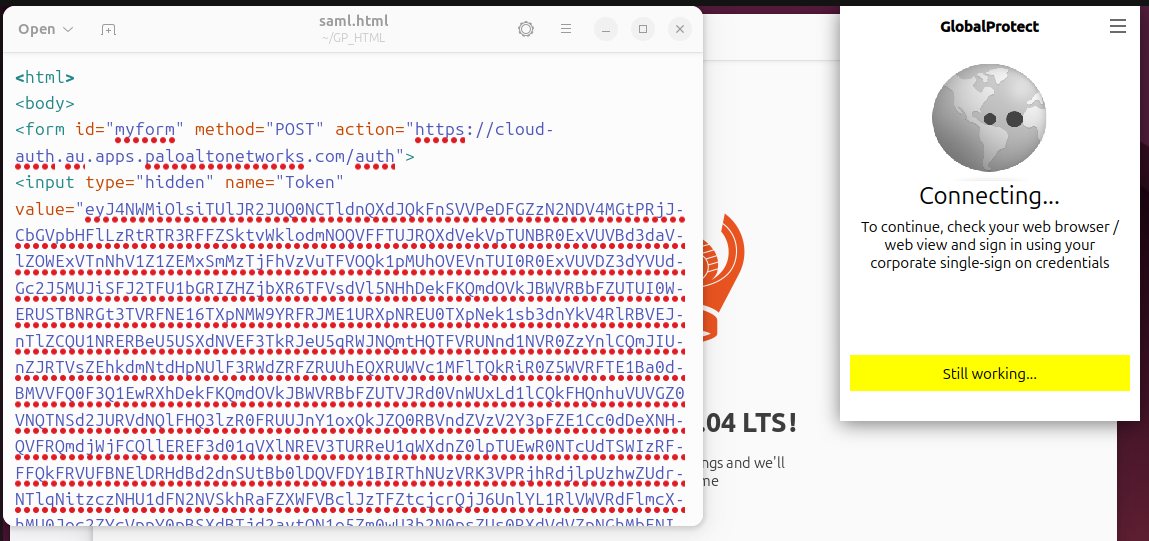
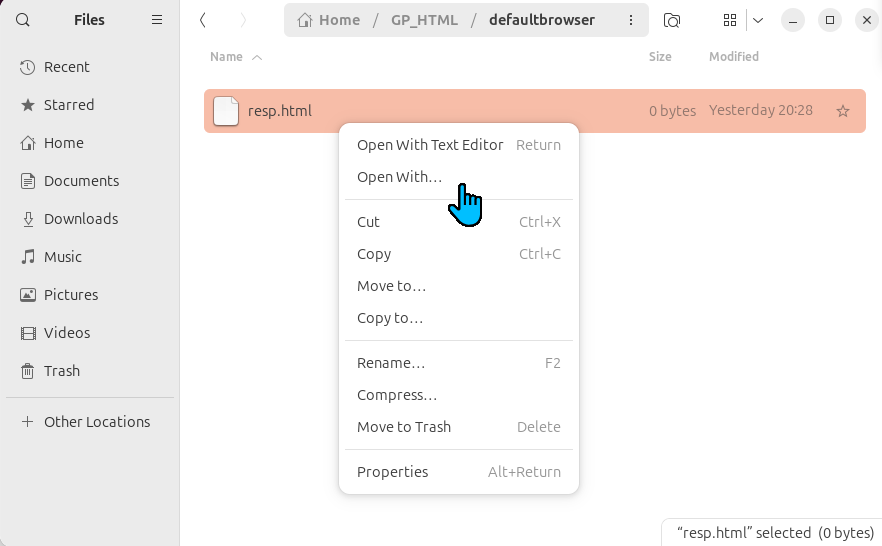
Which indicates that the file extension name “.html” does not associate with a web browser. Please associate the “.html” file extension with a web browser by find a “.html” file,
Then right click choose “open with…”
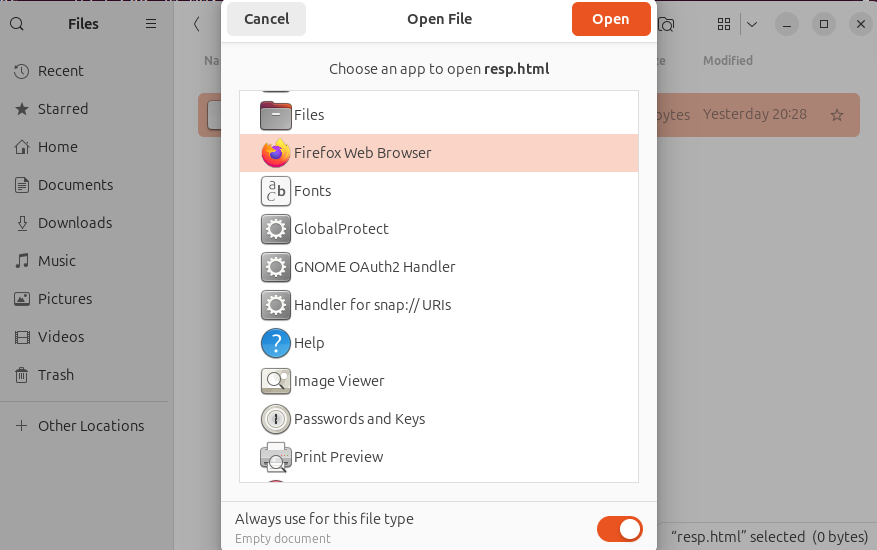
Then choose “Firefox Web Browser” and turn on the bottom switch “Always use for this file type” and click “Open”
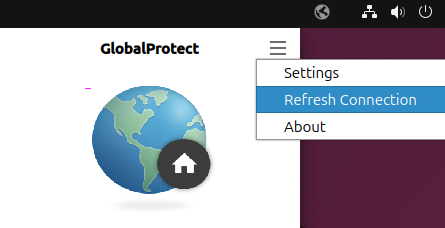
After that, you may need to click the GlobalProtect menu and click “Refresh Connection” to let the login page pup up again via a web browser.
============== Issue with missing Root CA Certificate for ra.vpn.unsw.edu.au ==============
If you have following error during the login process and you can’t click the “Continue” or “Open Link”
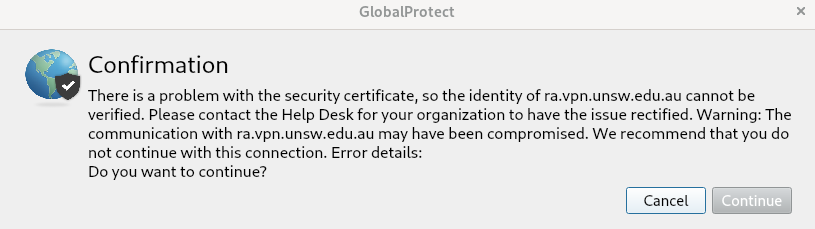
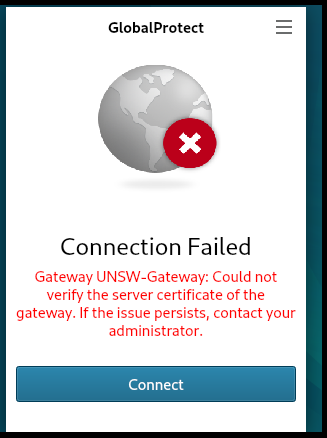
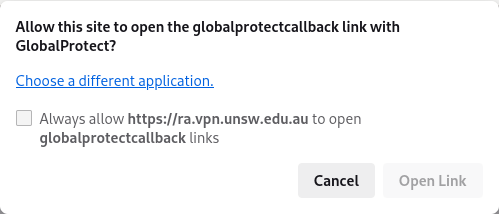
Then your Linux may not have the "DigiCert Global Root G2" root certificate installed to verify the "ra.vpn.unsw.edu.au" certificate which signed by the DigiCert Intermediate CA certificate.
Please try downloading the DigiCert Root Cert and Intermediate Cert as below and please install them on your Linux as a trusted CA certificate as most of the UNSW public services cert are signed by the following public CA DigiCert.
In most Linux versions, PEM format should be enough and after download, please change the file extension to ".crt" as some Linux versions only process the ".crt" file.
DigiCert Official Website:
https://www.digicert.com/kb/digicert-root-certificates.htm
|
DigiCert
Global Root G2 |
Valid until:
15/Jan/2038 |
|
|
|
DigiCert
Global G2 TLS RSA SHA256 2020 CA1 |
Issuer:
DigiCert Global Root G2 |
||
Or you can download the above PEM cert with ".crt" file extension here, it's the exact same content as above just different file extension name changed from ".pem" to ".crt"
https://unswsydney.com/unsw/2024/DigiCertGlobalRootG2.crt
https://unswsydney.com/unsw/2024/DigiCertGlobalG2TLSRSASHA2562020CA1-1.crt
Before you install them, please open the above .crt file you downloaded with a Text Editor, the file contains should be exactly the same as below, if the file you downloaded is not exactly the same, please Do NOT install it.
https://unswsydney.com/unsw/2024/DigiCertGlobalRootG2.crt
-----BEGIN CERTIFICATE-----
MIIDjjCCAnagAwIBAgIQAzrx5qcRqaC7KGSxHQn65TANBgkqhkiG9w0BAQsFADBh
MQswCQYDVQQGEwJVUzEVMBMGA1UEChMMRGlnaUNlcnQgSW5jMRkwFwYDVQQLExB3
d3cuZGlnaWNlcnQuY29tMSAwHgYDVQQDExdEaWdpQ2VydCBHbG9iYWwgUm9vdCBH
MjAeFw0xMzA4MDExMjAwMDBaFw0zODAxMTUxMjAwMDBaMGExCzAJBgNVBAYTAlVT
MRUwEwYDVQQKEwxEaWdpQ2VydCBJbmMxGTAXBgNVBAsTEHd3dy5kaWdpY2VydC5j
b20xIDAeBgNVBAMTF0RpZ2lDZXJ0IEdsb2JhbCBSb290IEcyMIIBIjANBgkqhkiG
9w0BAQEFAAOCAQ8AMIIBCgKCAQEAuzfNNNx7a8myaJCtSnX/RrohCgiN9RlUyfuI
2/Ou8jqJkTx65qsGGmvPrC3oXgkkRLpimn7Wo6h+4FR1IAWsULecYxpsMNzaHxmx
1x7e/dfgy5SDN67sH0NO3Xss0r0upS/kqbitOtSZpLYl6ZtrAGCSYP9PIUkY92eQ
q2EGnI/yuum06ZIya7XzV+hdG82MHauVBJVJ8zUtluNJbd134/tJS7SsVQepj5Wz
tCO7TG1F8PapspUwtP1MVYwnSlcUfIKdzXOS0xZKBgyMUNGPHgm+F6HmIcr9g+UQ
vIOlCsRnKPZzFBQ9RnbDhxSJITRNrw9FDKZJobq7nMWxM4MphQIDAQABo0IwQDAP
BgNVHRMBAf8EBTADAQH/MA4GA1UdDwEB/wQEAwIBhjAdBgNVHQ4EFgQUTiJUIBiV
5uNu5g/6+rkS7QYXjzkwDQYJKoZIhvcNAQELBQADggEBAGBnKJRvDkhj6zHd6mcY
1Yl9PMWLSn/pvtsrF9+wX3N3KjITOYFnQoQj8kVnNeyIv/iPsGEMNKSuIEyExtv4
NeF22d+mQrvHRAiGfzZ0JFrabA0UWTW98kndth/Jsw1HKj2ZL7tcu7XUIOGZX1NG
Fdtom/DzMNU+MeKNhJ7jitralj41E6Vf8PlwUHBHQRFXGU7Aj64GxJUTFy8bJZ91
8rGOmaFvE7FBcf6IKshPECBV1/MUReXgRPTqh5Uykw7+U0b6LJ3/iyK5S9kJRaTe
pLiaWN0bfVKfjllDiIGknibVb63dDcY3fe0Dkhvld1927jyNxF1WW6LZZm6zNTfl
MrY=
-----END CERTIFICATE-----
https://unswsydney.com/unsw/2024/DigiCertGlobalG2TLSRSASHA2562020CA1-1.crt
-----BEGIN CERTIFICATE-----
MIIEyDCCA7CgAwIBAgIQDPW9BitWAvR6uFAsI8zwZjANBgkqhkiG9w0BAQsFADBh
MQswCQYDVQQGEwJVUzEVMBMGA1UEChMMRGlnaUNlcnQgSW5jMRkwFwYDVQQLExB3
d3cuZGlnaWNlcnQuY29tMSAwHgYDVQQDExdEaWdpQ2VydCBHbG9iYWwgUm9vdCBH
MjAeFw0yMTAzMzAwMDAwMDBaFw0zMTAzMjkyMzU5NTlaMFkxCzAJBgNVBAYTAlVT
MRUwEwYDVQQKEwxEaWdpQ2VydCBJbmMxMzAxBgNVBAMTKkRpZ2lDZXJ0IEdsb2Jh
bCBHMiBUTFMgUlNBIFNIQTI1NiAyMDIwIENBMTCCASIwDQYJKoZIhvcNAQEBBQAD
ggEPADCCAQoCggEBAMz3EGJPprtjb+2QUlbFbSd7ehJWivH0+dbn4Y+9lavyYEEV
cNsSAPonCrVXOFt9slGTcZUOakGUWzUb+nv6u8W+JDD+Vu/E832X4xT1FE3LpxDy
FuqrIvAxIhFhaZAmunjZlx/jfWardUSVc8is/+9dCopZQ+GssjoP80j812s3wWPc
3kbW20X+fSP9kOhRBx5Ro1/tSUZUfyyIxfQTnJcVPAPooTncaQwywa8WV0yUR0J8
osicfebUTVSvQpmowQTCd5zWSOTOEeAqgJnwQ3DPP3Zr0UxJqyRewg2C/Uaoq2yT
zGJSQnWS+Jr6Xl6ysGHlHx+5fwmY6D36g39HaaECAwEAAaOCAYIwggF+MBIGA1Ud
EwEB/wQIMAYBAf8CAQAwHQYDVR0OBBYEFHSFgMBmx9833s+9KTeqAx2+7c0XMB8G
A1UdIwQYMBaAFE4iVCAYlebjbuYP+vq5Eu0GF485MA4GA1UdDwEB/wQEAwIBhjAd
BgNVHSUEFjAUBggrBgEFBQcDAQYIKwYBBQUHAwIwdgYIKwYBBQUHAQEEajBoMCQG
CCsGAQUFBzABhhhodHRwOi8vb2NzcC5kaWdpY2VydC5jb20wQAYIKwYBBQUHMAKG
NGh0dHA6Ly9jYWNlcnRzLmRpZ2ljZXJ0LmNvbS9EaWdpQ2VydEdsb2JhbFJvb3RH
Mi5jcnQwQgYDVR0fBDswOTA3oDWgM4YxaHR0cDovL2NybDMuZGlnaWNlcnQuY29t
L0RpZ2lDZXJ0R2xvYmFsUm9vdEcyLmNybDA9BgNVHSAENjA0MAsGCWCGSAGG/WwC
ATAHBgVngQwBATAIBgZngQwBAgEwCAYGZ4EMAQICMAgGBmeBDAECAzANBgkqhkiG
9w0BAQsFAAOCAQEAkPFwyyiXaZd8dP3A+iZ7U6utzWX9upwGnIrXWkOH7U1MVl+t
wcW1BSAuWdH/SvWgKtiwla3JLko716f2b4gp/DA/JIS7w7d7kwcsr4drdjPtAFVS
slme5LnQ89/nD/7d+MS5EHKBCQRfz5eeLjJ1js+aWNJXMX43AYGyZm0pGrFmCW3R
bpD0ufovARTFXFZkAdl9h6g4U5+LXUZtXMYnhIHUfoyMo5tS58aI7Dd8KvvwVVo4
chDYABPPTHPbqjc1qCmBaZx2vN4Ye5DUys/vZwP9BFohFrH/6j/f3IL16/RZkiMN
JCqVJUzKoZHm1Lesh3Sz8W2jmdv51b2EQJ8HmA==
-----END CERTIFICATE-----
Note: If the file you downloaded is not exactly the same as above, please Do NOT install it.
If you have never installed a Root Certificate on Linux before, you can check this instruction page from Ubuntu official website:
https://documentation.ubuntu.com/server/how-to/security/install-a-root-ca-certificate-in-the-trust-store/
-----------------------------------------------------------------------------------------------------------------------------------------------
Install a PEM-format certificate
Assuming your PEM-formatted root CA certificate is in local-ca.crt, run the following commands to install it:
sudo apt-get install -y ca-certificates
sudo cp local-ca.crt /usr/local/share/ca-certificates
sudo update-ca-certificates
Note: It is important that the certificate file has the .crt extension, otherwise it will not be processed.
After this point you can use tools like curl and wget to connect to local sites.
The CA trust store location
The CA trust store (as generated by update-ca-certificates) is available at the following locations:
- As a single file (PEM bundle) in /etc/ssl/certs/ca-certificates.crt
- As an OpenSSL-compatible certificate directory in /etc/ssl/certs
-------------------------------------------------------------------------------------------------------------------------------------------------
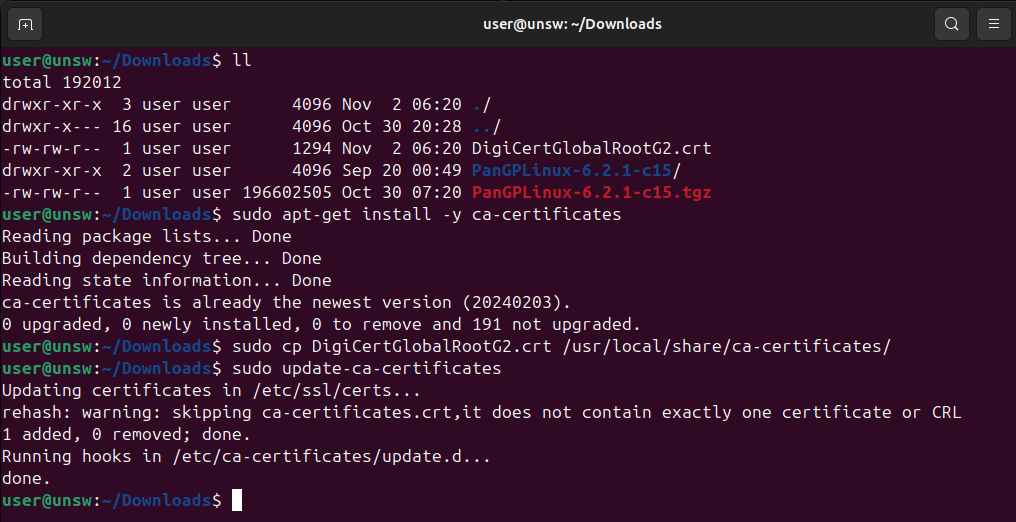
We tested the above on Ubuntu Linux. However, it may not be the same to other Linux versions, you may need to search how to install root certificate on your Linux version.
Fedora Linux 41
1. Please download the GlobalProtect Linux package file through the Link provide in the email.
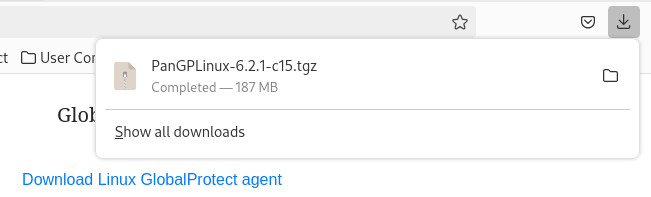
2. Please verify that the file check sum is matching with the check sum provide in the email.
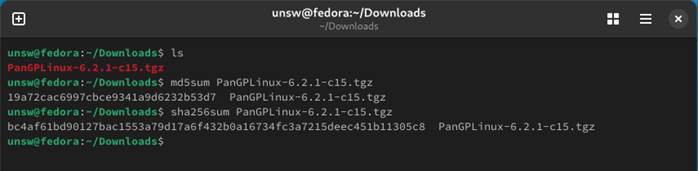
3. Unzip the Linux package file and find the correct installation file according to your Linux version and architecture ( Intel x86 or ARM ). Please choose the UI version on GUI Linux if possible as you may need a browser for the MFA process during the ra.vpn.unsw.edu.au login process.
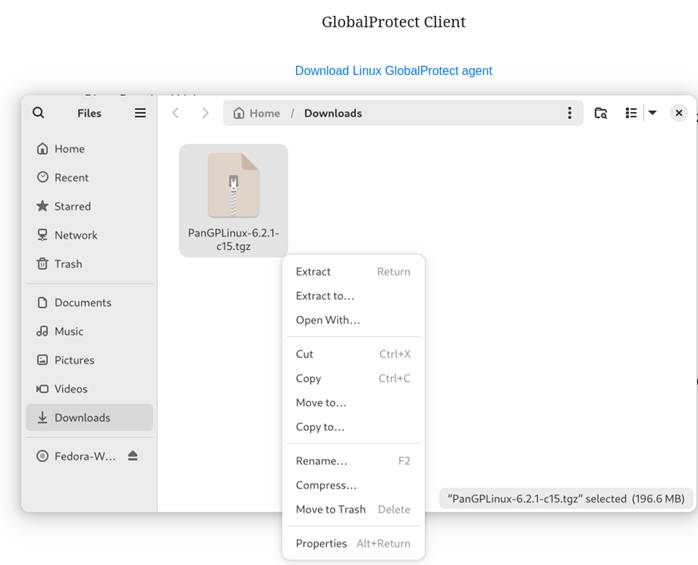
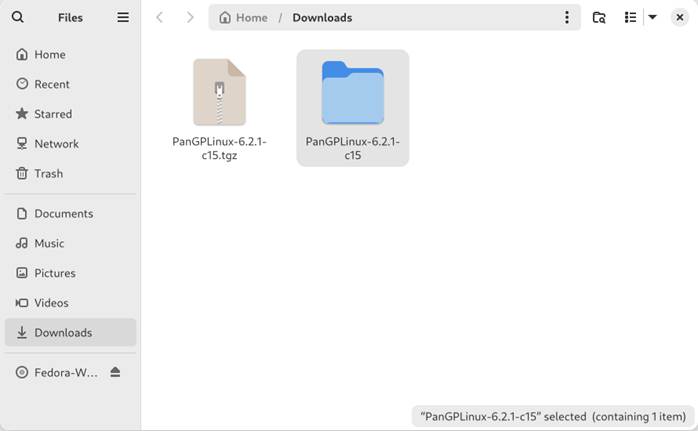
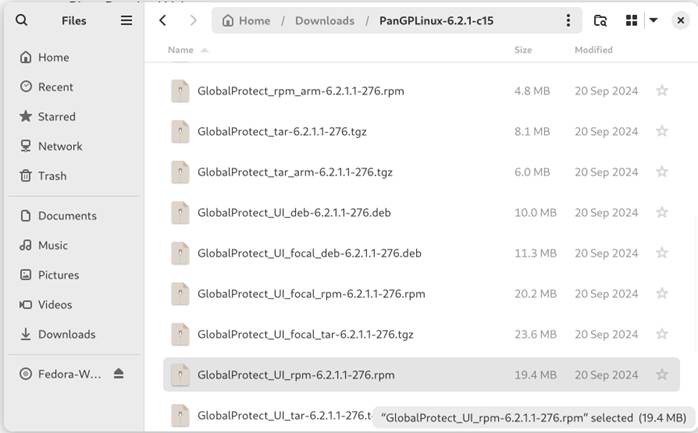
4. Install the GlobalProtect Client software via GUI (Open With Software Install):
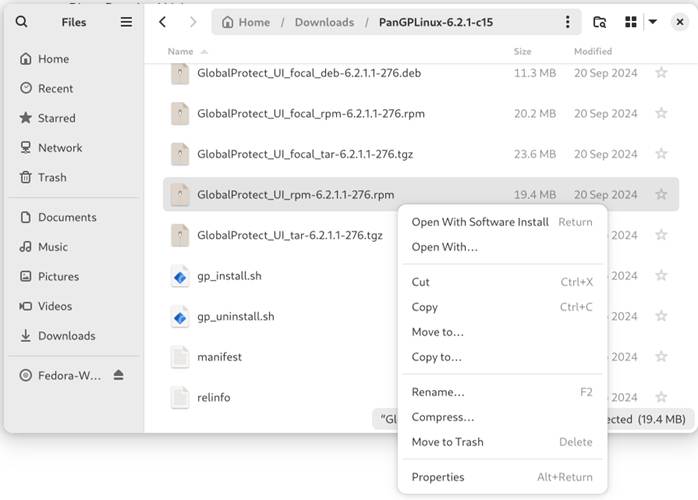
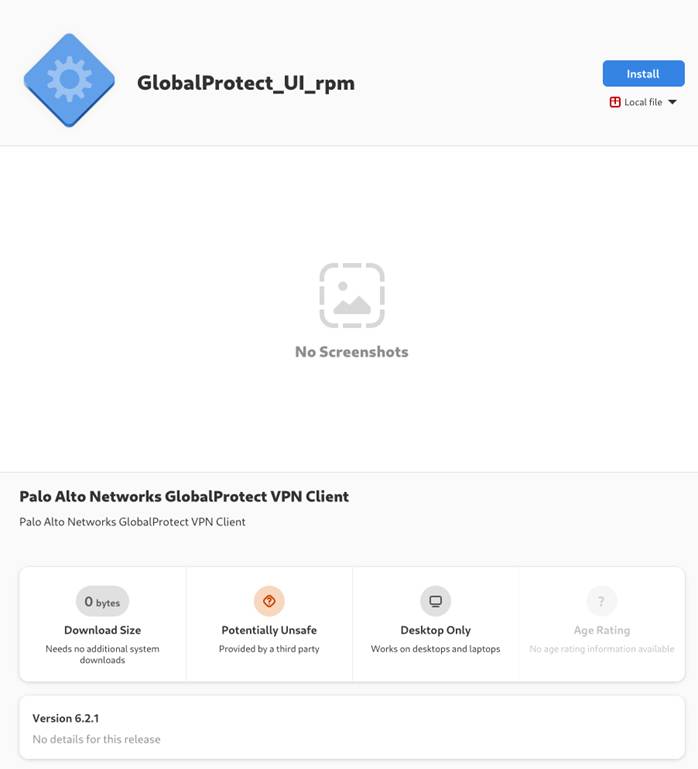
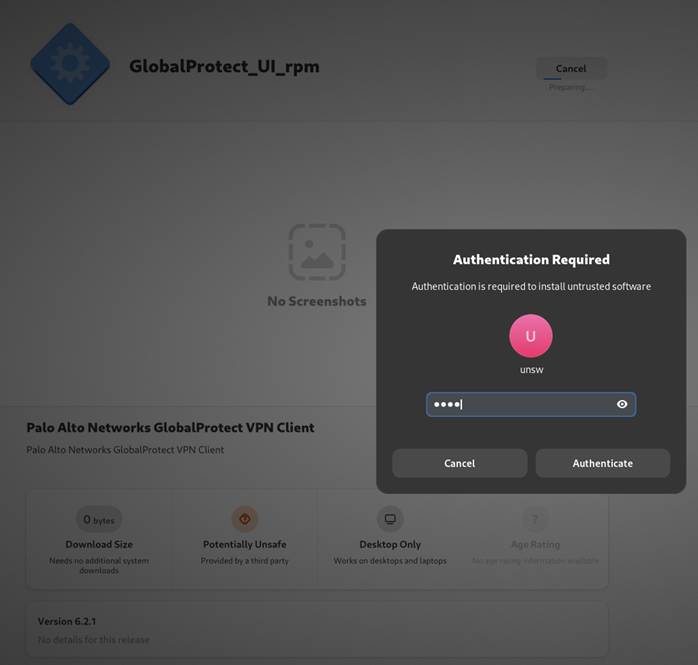
5. Please Reboot/Restart your Fedora Linux after installing, you may find GlobalProtect won’t start if you haven’t reboot Fedora Linux.
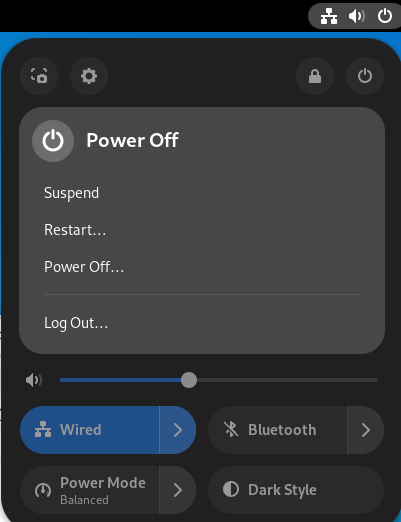
6. The GlobalProtect icon should appear in the Apps after Reboot. If not, you can find it in Apps.
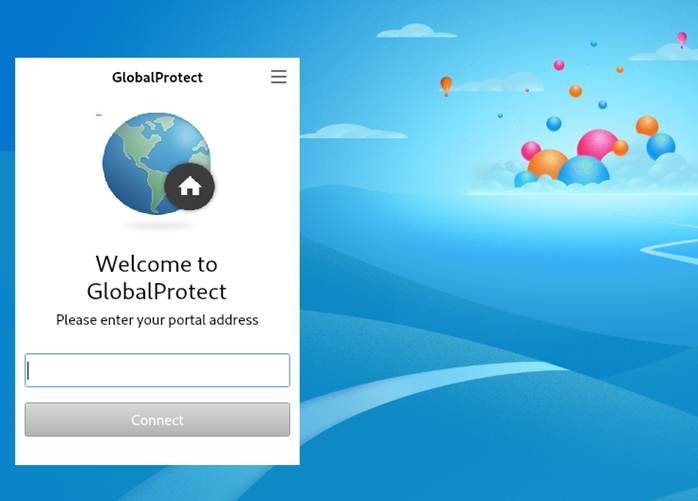
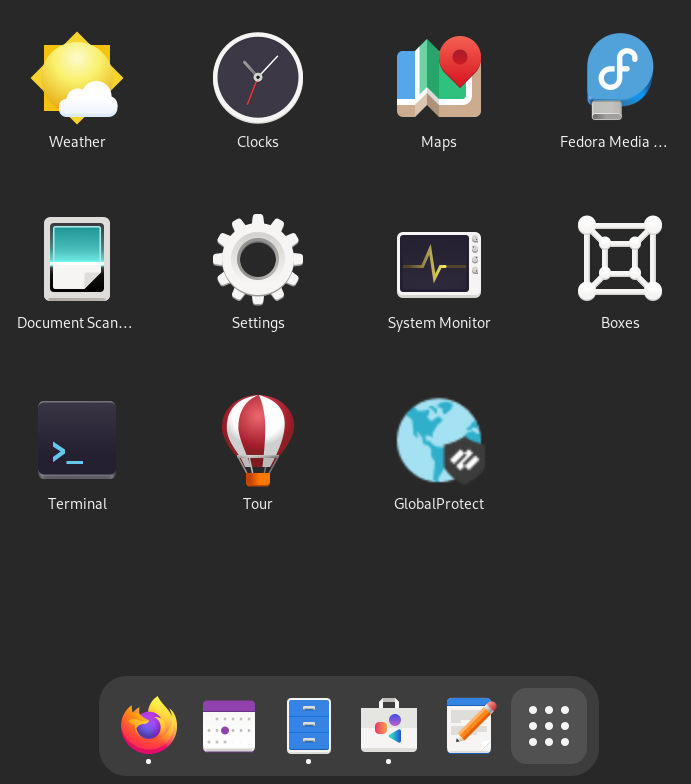
7. After starting the GlobalProtect App, please put in portal address: ra.vpn.unsw.edu.au
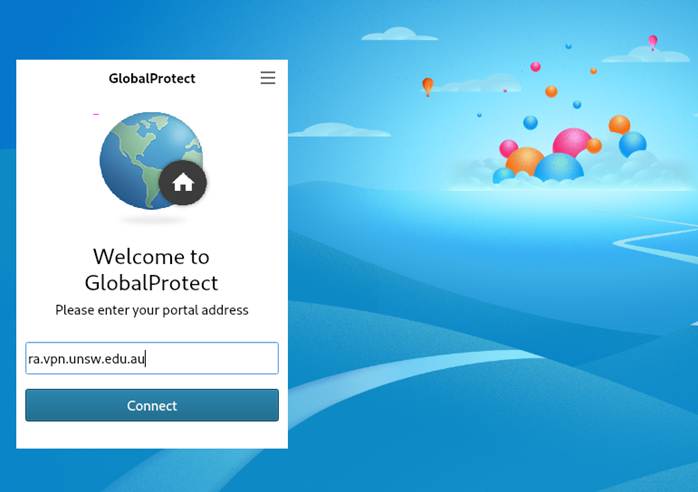
8. Then click “ Connect ”, it should be pop up a web browser window for you to login your zID account.
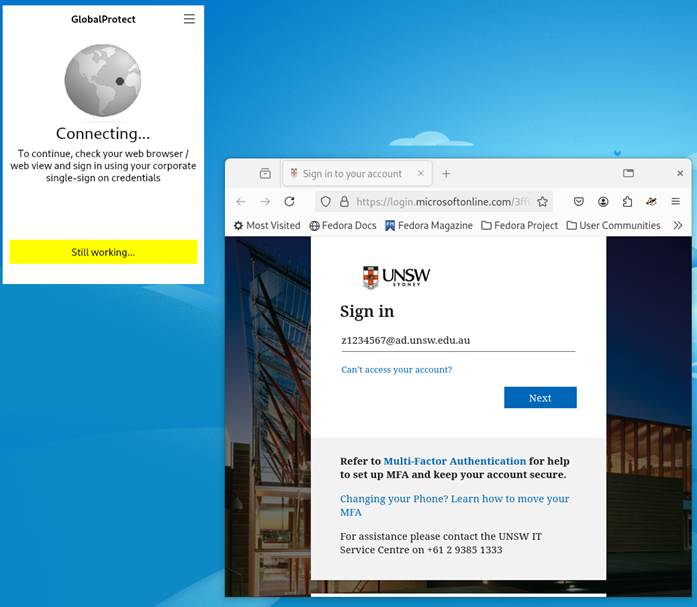
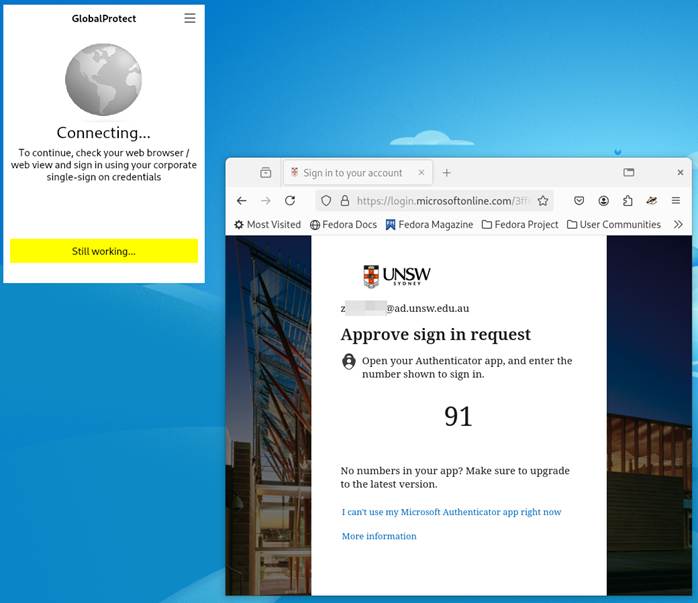
9. Enter your zID account (e.g.: z1234567@ad.unsw.edu.au) and zPass, followed by MFA process, Complete multi factor authentication (MFA) with the Authenticator app on your mobile device.
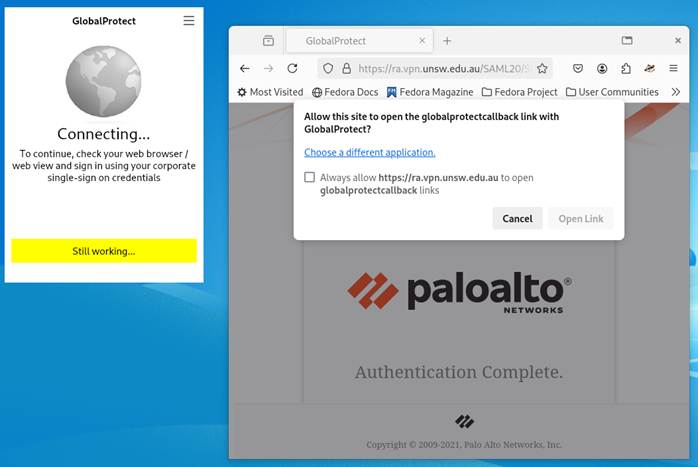
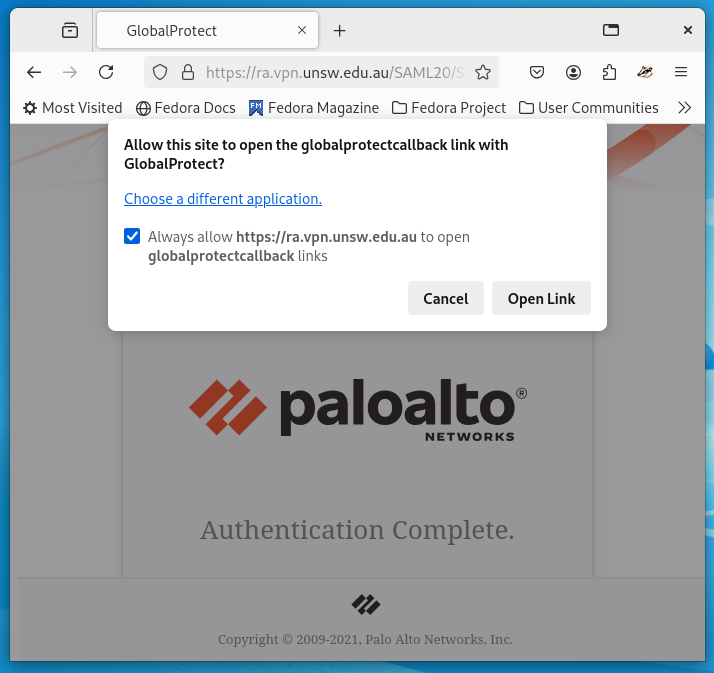
10. In “Authentication Complete” page, Please tick the check box “Always allow https://ra.vpn.unsw.edu.au to open globalprotectcallback links” and then click “ Open Link ” to continue
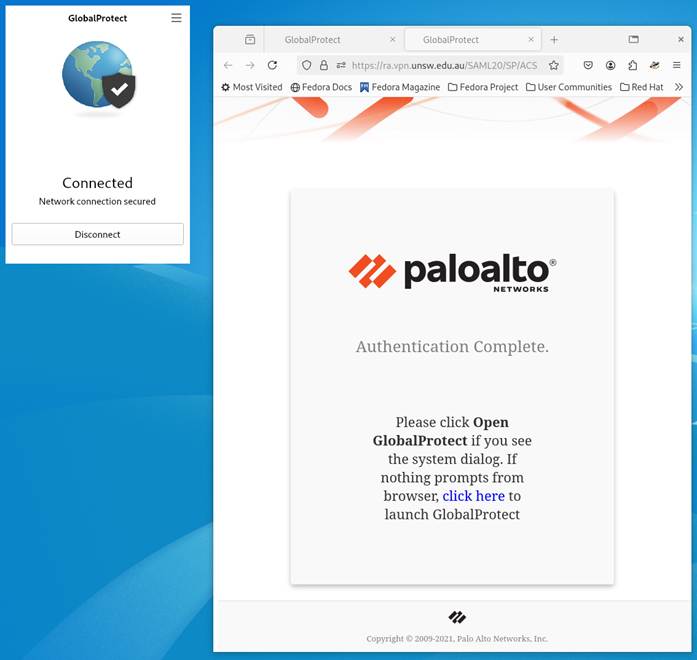
11. The GlobalProtect should be connected
-------------- Troubleshooting --------------
If there is error occurring, please take screenshots for the error message, and please click the menu on the GlobalProtect Apps and click “ settings ”:
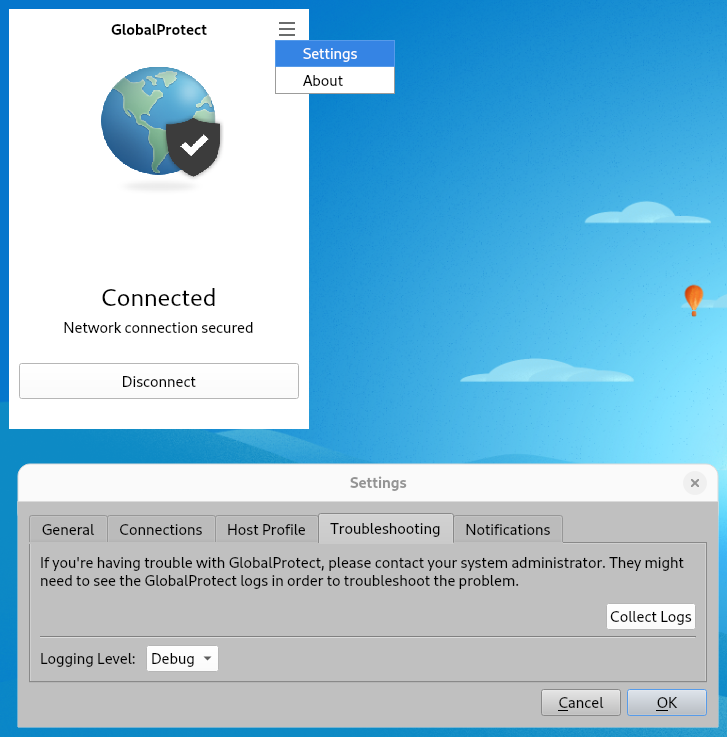
Then click “ Troubleshooting ” Tab, and click “ Collect Logs ”:
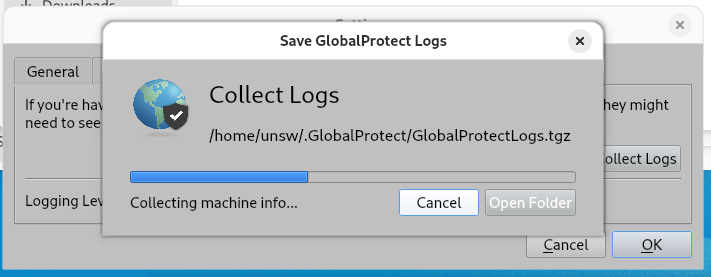
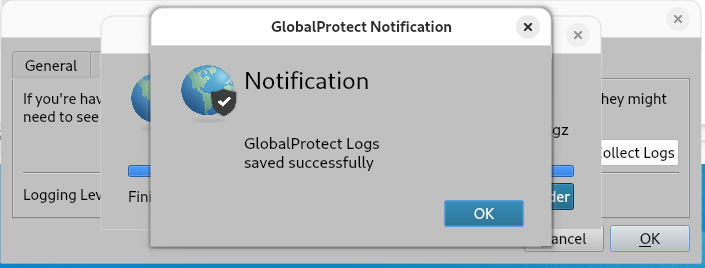
Then click “ Open Folder “
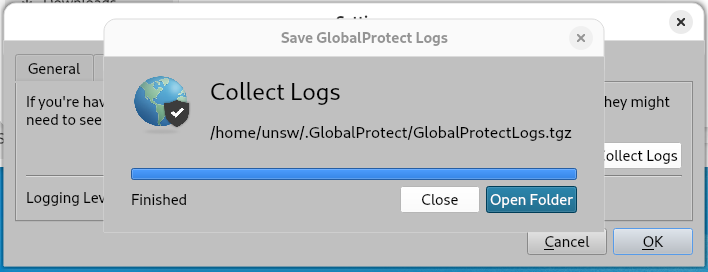
Please send us the logs file generated via email, so we can diagnostic the issue.
© UNSWSydney.com all rights reserved.